


One lesson fix for Zoom audio for music teachers, studio tested

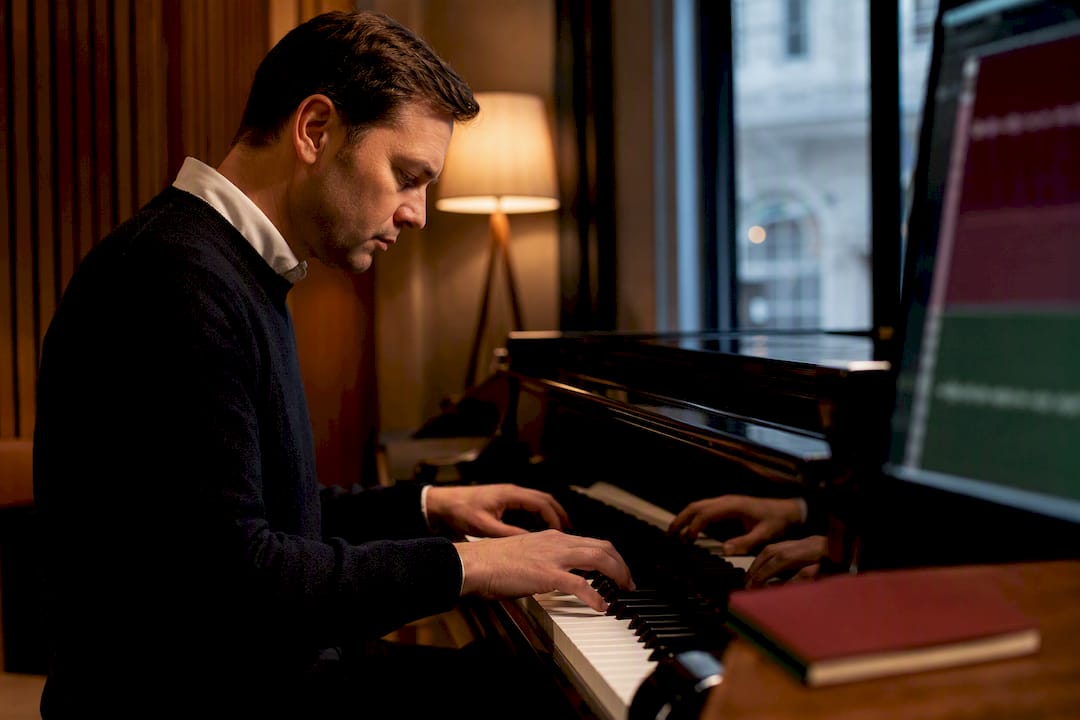
The fastest way to fix Zoom audio settings for music lessons is enabling Original Sound for musicians, switching on High-fidelity music mode, and setting background noise suppression to Low. Pair that with wired headphones and, ideally, an external microphone or audio interface. Most teachers hear the difference within a single lesson.
TL;DR:
Enabling Original Sound and high-fidelity music mode on Zoom significantly improves audio quality, especially for sustained notes and dynamic shading.
Using wired headphones, a USB condenser microphone, and a wired internet connection are essential for achieving professional-grade sound during lessons.
Noise suppression should be set to Low or disabled, and automatic microphone gain turned off to prevent muffling and audio cutouts.
Live performance audio requires desktop app use, 48 kHz inputs, and a robust CPU, but it sacrifices noise reduction features and is best for ensemble work.
Regular pre-lesson checks and proper microphone placement, like positioning away from reflective surfaces, prevent common audio issues like echo and choppiness.
Table of Contents
Exact Zoom desktop settings to change (step-by-step)
Everything below requires the Zoom desktop client, not the browser version, which strips out the professional audio options teachers actually need.
Open Zoom, go to Settings > Audio, and find Music and Professional Audio. Tick Original Sound for musicians.
Within that same panel, enable High-fidelity music mode and Stereo audio, provided you’re using an external mic or interface rather than a laptop’s built-in one.
Untick Automatically adjust microphone volume. Set background noise suppression to Low, or disable it entirely if your room is reasonably quiet.
If you’re the host, confirm the account-level toggle for showing Original Sound is switched on. Without it, students may never see the in-meeting option at all, a gap that catches out a surprising number of teachers who assume they’ve done everything right.
High-fidelity mode does more than sound like a marketing label. It raises Zoom’s codec quality to 48 kHz and strips out the compression that normally flattens musical detail, so sustained piano notes, pedal work, and dynamic shading survive the call instead of being smoothed into speech-shaped audio. That matters more than most people realise, because Zoom’s defaults are built for conversation, not performance. A held note or a soft passage gets read as “background noise” and gets suppressed unless you tell the software otherwise.
One thing worth flagging: several of these controls, including high-fidelity mode itself, exist only in the desktop app. If a student joins from a tablet or a browser tab, they won’t find the same settings, so it’s worth checking their setup before the first lesson rather than during it.
Physical and network setup teachers should use
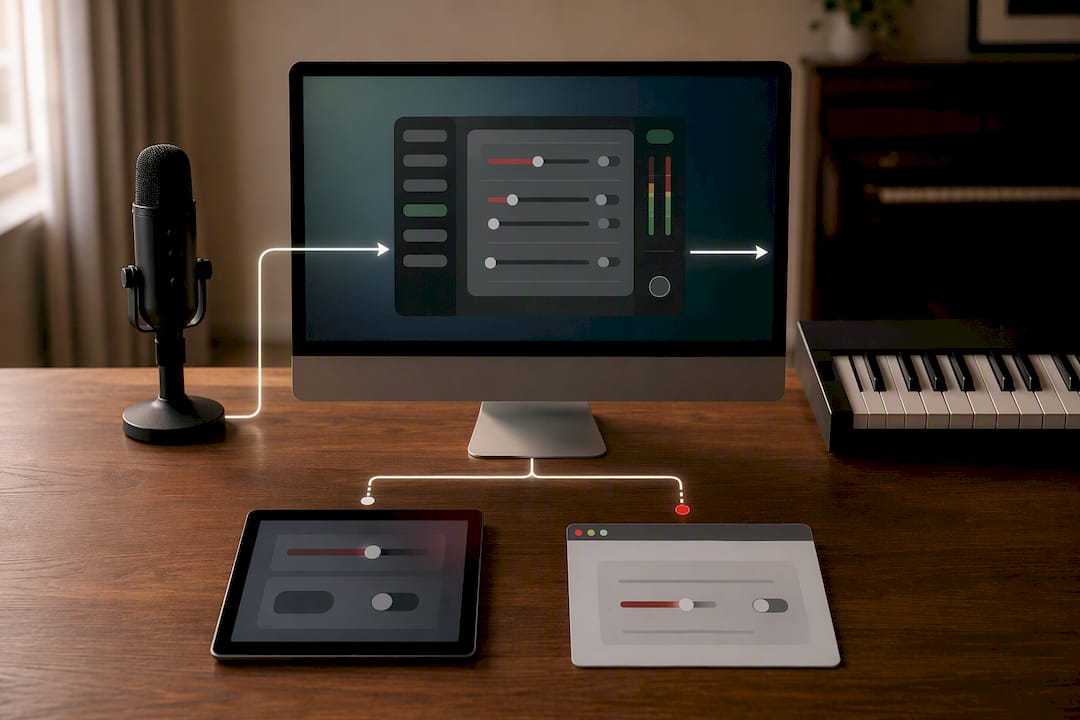
Software settings only work as well as the hardware feeding them. A £15 headset plugged into a laptop mic will never sound as clean as a modest external setup, no matter how many toggles you flip.
Headphones: wired, over-ear if possible. Bluetooth introduces latency and drops audio quality exactly when you need neither.
Microphone: a USB condenser mic is the sensible baseline for one-to-one lessons. For higher fidelity, or if you’re running group sessions with instrumental ensembles, a proper audio interface with XLR input gives noticeably cleaner separation between instrument and room noise.
Network: wired Ethernet over Wi-Fi wherever you can manage it, especially if you plan to use Live performance audio, which is far less forgiving of dropped packets.
Room placement: sit the mic away from hard, reflective surfaces. A rug, a bookshelf, even curtains behind you will cut down the boxy echo that bare walls create.
Pro Tip: Angle your microphone slightly off-axis from a piano’s soundboard rather than pointing it straight at the keys. It reduces the harsh transient “clack” of key mechanisms while still capturing the tone properly.
In-meeting checklist and etiquette for lessons
Run this before every lesson, not just the first one. Settings have a habit of resetting themselves, particularly Original Sound, which often needs re-enabling inside each individual meeting even after the account-level setting is switched on.
Host confirms the account-level Original Sound setting is live, so both teacher and student can see the toggle when the meeting starts.
Each participant selects the correct microphone input, disables auto gain, and turns on Original Sound from their own end.
Agree mute etiquette upfront: who stays muted during solos, how you’ll signal when it’s time to play, and whether chat is the fallback for cueing when talking over each other isn’t practical.
How to share audio and play-along tracks in high fidelity
Backing tracks and recorded examples need a different sharing method than your live microphone feed.
Click Share screen, tick Share computer sound, then choose Stereo or High-fidelity from the advanced audio menu.
For audio-only sharing, without your webcam competing for bandwidth, use Advanced > Computer audio.
Keep your own microphone live while sharing if students need to hear your commentary over the track.
Test the balance between your voice and the shared audio before the lesson starts. Nothing kills momentum faster than fumbling with sliders mid-session.
If latency makes playing along with a shared track impossible, send the track beforehand, use a clear count-in, or drop to a mono share when bandwidth is tight.
A tool like AmmarAI’s sound studio can help clean up a backing track’s mix before you share it, which matters more than people expect. A muddy recording sounds even muddier once it’s been through Zoom’s compression.
Live performance audio: requirements, latency and trade-offs
Live performance audio exists for a specific problem: getting two musicians playing together in real time without the lag that makes duets impossible over a standard connection. It targets latency of roughly 30 to 50 milliseconds, close enough to feel like playing in the same room.
That figure comes with conditions attached:
Every participant needs the desktop app. No exceptions.
Audio inputs must support a 48 kHz sample rate.
Devices need a CPU with four or more physical cores to keep up with the processing load.
A wired Ethernet connection is strongly recommended; this mode is far less tolerant of a shaky Wi-Fi signal than standard Zoom audio.
The trade-off worth weighing: enabling this mode switches off the noise-suppression and echo-cancellation tools that make ordinary lessons more forgiving. For most one-to-one instrumental teaching, Original Sound with Low noise suppression is the steadier choice. Save Live performance audio for genuine ensemble work where timing sync outweighs everything else.
Troubleshooting quick fixes for common problems
Sustained notes cutting out: confirm Original Sound is on, noise suppression is set to Low, and automatic mic gain is disabled. This is the single most common cause.
Echo or feedback: switch to headphones immediately. If you’re stuck on speakers, re-enable echo cancellation even though it costs you some fidelity.
Choppy or stuttering audio: switch to Ethernet, close any bandwidth-heavy background apps, and turn video off or down if the connection is genuinely struggling.
Shared audio sounds thin or quiet: use the Advanced computer audio share option and pick Stereo or High-fidelity rather than the default mono share.
Dan Piano Studio’s tested setup and checklist
Our recommended kit for online lessons is deliberately simple: wired headphones, a USB condenser mic (or an interface for group sessions), and a wired network connection. None of it is expensive, and all of it outperforms whatever a laptop offers by default.
Before every lesson, run this quick sound check:
Confirm Original Sound, High-fidelity mode, and Low noise suppression are all active.
Play a short scale or chord and check the student can hear dynamics, not just volume.
Ask directly: “Can you hear the difference between soft and loud?” If the answer is no, something upstream needs adjusting before the lesson properly begins.
For camera placement and lighting to match the audio setup, our piano lesson webcam guide covers the practical side of looking as clear as you now sound.
Why getting the audio right changes how a lesson feels
Switching a student to high-fidelity settings for the first time is one of those small moments that changes how a lesson runs. Dynamics that used to disappear, the difference between a mezzo-forte and a genuine forte, suddenly come through, and correcting touch becomes possible again instead of guesswork. Follow the checklist above properly, and get in touch if you get stuck.
— Dan
Get professional help with your online lesson setup
There are other ways to sort this yourself: buying a mic, testing settings for an hour, hoping the network holds. Professional help with online lesson setup is available, particularly if teaching software configuration isn’t how you want to spend an evening. Our online piano lessons come with setup guidance built in, so students and parents get properly configured audio from the first session rather than fighting Zoom menus mid-lesson.
If you’d rather have someone check your Zoom configuration once and be done with it, or you’re weighing up online lessons against learning face to face, our guide to online piano lessons that actually work explains what to expect either way. For those in London who prefer tuition in person, home piano lessons remain an option too. Book a session and we’ll walk through the audio setup with you before the first proper lesson starts.
Sources
Settings guidance draws on Zoom’s own professional audio documentation, practitioner steps from Midnight Music’s 2025 update, and etiquette advice from Sound on Sound.
FAQ
How do I set up Original Sound for musicians on Zoom?
Go to Settings > Audio > Music and Professional Audio in the desktop app and tick Original Sound for musicians. The host must also enable the account-level setting, or attendees won’t see the in-meeting toggle at all.
How do I adjust Zoom audio settings generally?
Open Settings > Audio, disable automatic microphone volume adjustment, and set background noise suppression to Low. These two changes alone fix most muffled or cutting-out audio during lessons.
Is there a version of Zoom built specifically for musicians?
Not a separate product, but Zoom’s High-fidelity music mode and Original Sound for musicians function as a dedicated mode within the standard app, raising codec quality to 48 kHz and removing the compression that normally flattens instrumental sound.
What’s the best way to get the clearest possible audio on Zoom?
Combine Original Sound, High-fidelity mode, and Low noise suppression with wired headphones and an external microphone or interface. Software settings only get you partway; a laptop’s built-in mic caps the ceiling regardless of what’s toggled on.
Recommended


Comments